Quick answer
- Force restart first. Press volume up, then volume down, then hold the side button until the Apple logo appears. It works even when the screen won't respond.
- Strip it down. Take off the screen protector and case, unplug any cable or accessory, then dry and clean the glass.
- Only part of the screen works? Dead zones, lines or taps that happen on their own (ghost touch) usually point to hardware.
- Back up before anything drastic. If the phone still responds a little, save your data before a reset or repair.
- Cracked, dropped or wet? Skip the home fixes and get it checked. Call or get a free quote.
Screen not responding? Get it checked in Tustin
Ultimate Wireless Solutions repairs iPhone, Samsung Galaxy and Google Pixel screens for customers across Orange County. Every phone is different, so call or get a free quote.
Why is my iPhone touch screen not working?
The touch layer on an iPhone sits just under the glass and talks to the logic board through a thin ribbon cable. Anything that breaks that chain, from a bug in iOS to a cracked panel, can make the screen ignore your finger. At our Tustin shop we often see the same handful of causes:
- Frozen software. An app or iOS itself hangs. The screen looks normal, but nothing responds.
- Screen protector problems. A thick, cracked or bubbled protector, or dust trapped under it, can block touches or cause phantom taps.
- Water, sweat or grime on the glass. Moisture confuses the touch sensor. So do wet fingers and most gloves.
- Cables and accessories. A damaged cable, cheap charger or USB-C accessory can make touch jumpy, especially while charging.
- Accessibility settings. Touch Accommodations or Guided Access change how the screen reacts and can feel like a fault.
- Drop damage. A hard drop can crack the touch layer under glass that looks fine, or loosen the display connector inside.
- Liquid inside the phone. Corrosion on the display connector often shows up days after a spill.
- A low-quality replacement screen. If the screen was replaced before, a poor aftermarket part can respond badly or ghost-touch.
How to fix an iPhone screen that isn't responding to touch
Work through these in order. The first few take seconds and fix most software problems. They follow the checks Apple lists for when the screen isn't working on iPhone or iPad, plus what we look at first on the bench.
1. Force restart your iPhone
A force restart doesn't erase anything and doesn't need the screen. On iPhone 8 and later, including the iPhone 15, 16 and 17 lineups:
- 1Press and quickly release volume up.
- 2Press and quickly release volume down.
- 3Press and hold the side button. Keep holding until the Apple logo appears, then let go.
If touch works normally after the restart, it was a software freeze. If you never see the Apple logo, follow our steps for when an iPhone won't turn on instead.
2. Remove the screen protector and case
Peel the protector off from one corner and test the bare glass. A cracked protector, or dust and bubbles under it, is one of the most common reasons for dead spots and phantom taps. A tight or bent case can also press on the edges of the display.
3. Clean and dry the screen and your hands
Wipe the glass with a soft, lint-free cloth. Dry the phone and your fingers if anything is damp. Don't spray cleaner straight onto the screen. If the phone took more than a splash, turn it off and plan on a water damage repair check rather than more troubleshooting.
4. Unplug cables and accessories
Disconnect the charger and anything plugged into the Lightning or USB-C port. If touch works once it's unplugged, try a different outlet, cable or charger. A frayed cable is a common reason a screen acts up only while charging.
5. Update iOS and the app
If the screen only freezes in one app, update or reinstall that app. If it happens everywhere and the screen responds at all, go to Settings > General > Software Update and install any update that's waiting.
6. Check your touch settings
Open Settings > Accessibility > Touch > Touch Accommodations. If it's on, options like Hold Duration can make quick taps feel ignored. Also make sure Guided Access isn't running, since it can lock parts of the screen.
7. Reset all settings, then restore as a last resort
Settings > General > Transfer or Reset iPhone > Reset > Reset All Settings clears system settings but keeps your photos, messages and apps. If touch still misbehaves everywhere, a full restore from a computer is the final software step. Back up first. If the screen won't let you back up, our data recovery service can help get your files off.
iPhone screen unresponsive but the phone is still on
If you still hear notifications, feel vibrations or see the screen light up while it ignores your finger, you have a few options:
- Use Siri to make calls or send messages while you sort it out.
- Back up to a trusted computer. Plug into a Mac or PC you've used with this iPhone before and back up with Finder or the Apple Devices app. A new computer will ask you to tap Trust, which won't work on a dead screen.
- Look for a pattern. If the top half works and the bottom doesn't, or one strip never responds, the touch layer is damaged. No setting fixes a dead zone.
Ghost touch: when your iPhone taps on its own
Ghost touch is the opposite problem. Apps open, letters type or the screen scrolls without you touching it. Start with the same steps above, especially removing the protector, cleaning the glass and unplugging the charger.
If it keeps happening on a bare, clean, unplugged phone after a restart and an update, the display is almost always the cause. It's common after a drop, a pressure crack or a cheap replacement screen. If you also see colored lines or flicker, our guide to lines on a phone screen explains what those mean.
Software or hardware? How to tell
- Probably software: the whole screen froze at once, a force restart fixed it, it only happens in one app, or it started right after an update.
- Probably hardware: it started after a drop or spill, only part of the screen responds, there are cracks, lines or flicker, it ghost-touches on a bare phone, or the problem survives a reset.
When to bring it to a pro
Book a check if any of these sound familiar:
- The glass is cracked, even slightly, or the screen is lifting away from the frame.
- Touch stopped working after a drop, even with no visible damage.
- The phone got wet, or touch problems started a few days after a spill.
- Part of the screen is dead, or it ghost-touches with no protector and nothing plugged in.
- Nothing above worked and you need your photos and messages off the phone.
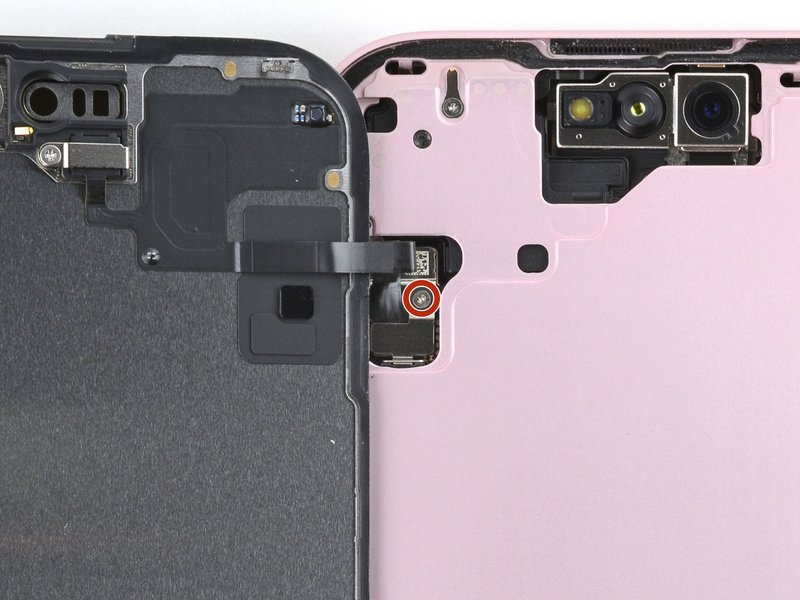
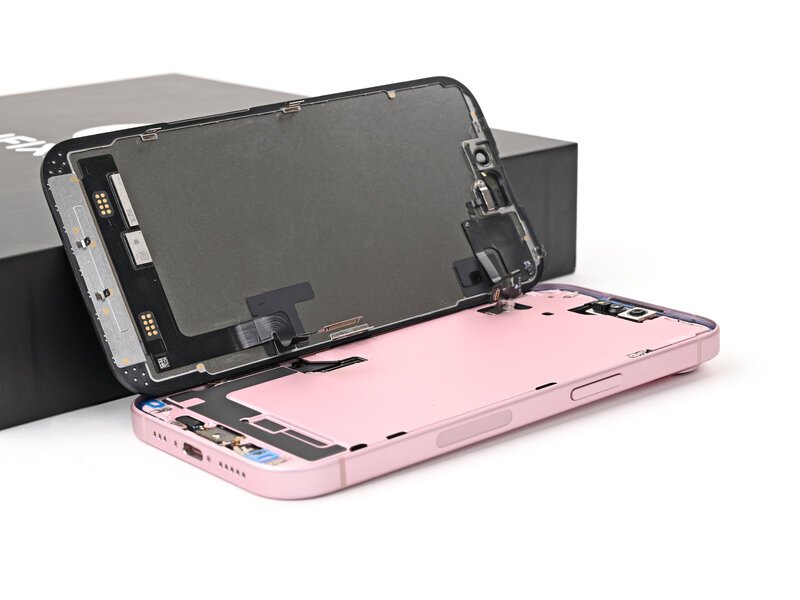
In most of these cases the fix is a screen repair, which replaces the display assembly: the glass, the panel and the touch layer as one part. Curious what that involves? Our iPhone 15 screen replacement guide shows each step. It takes heat, special tools and care around the display and Face ID cables, so most people are better off letting a technician do it. For anything else wrong with the phone, see our iPhone repair services.
FAQ: iPhone touch screen problems
Why is my iPhone touch screen not working but the phone is on?
Usually iOS has frozen, or the touch layer is damaged while the display still works. Try a force restart first. If the screen still ignores you after removing the protector and unplugging accessories, have the display checked.
How do I fix an unresponsive iPhone screen without touching it?
Use the buttons. Press and release volume up, press and release volume down, then hold the side button until the Apple logo appears. This force restart doesn't need the screen and doesn't erase anything.
Can a screen protector stop an iPhone touch screen from working?
Yes. A thick, cracked or poorly applied protector, or dust and bubbles under it, can block touches or cause ghost taps. Remove it and test the bare glass before assuming the screen is damaged.
What causes ghost touch on iPhone?
Common causes are a dirty or wet screen, a damaged screen protector, a faulty cable or charger, a software bug, and display damage from a drop or a low-quality replacement screen. If it continues on a clean, bare, unplugged phone, the display is the likely cause.
Can a frozen iPhone screen fix itself?
Sometimes. A software freeze can clear when the battery runs down and the phone restarts, but a force restart is faster. A screen that stays unresponsive after a restart, or keeps freezing, usually needs a repair.
Is it worth fixing an iPhone touch screen?
For most recent iPhones, a screen repair costs much less than a new phone and keeps your data in place. It depends on the phone's age and any other damage, so call or get a free quote and we'll tell you what we find.
Touch screen still not working? We can help in Tustin
Bring your iPhone to Ultimate Wireless Solutions at 18062 Irvine Blvd Suite 207, Tustin, CA 92780, or call (949) 300-8898. We repair iPhone screens for customers across Tustin, Irvine, Santa Ana, Orange, Anaheim, Costa Mesa, Newport Beach, Mission Viejo and Lake Forest. Coming from Irvine? See our cell phone repair in Irvine page for directions. Every phone is different, so call or get a free quote, or book an appointment and we'll take a look.